New Mobile App banner

Stay connected and access important information when you want it!

Member and Guest User Guide

With the NEW app, everything you need is in one place: program sign-ups, schedules, announcements, account management, a simple barcode for check-in and so much more – all using the same username and password you already use to manage your Y membership account online.

*Sign up for Classes & Programs
*View your upcoming class registrations
*View schedules
*Use Barcodes to check-in
*Join Challenges (Challenges will start in August)
*Donate
*Get Push Notifications
*Manage your Account

Logging Into The Member App

First go to your App Store and search for the “Riverbrook Regional YMCA App” and download the app. 

  1. After you download the app please enter the email or phone number associated with your Y account.
  2. You will be asked to enter your password, get a one time code or reset your password.
  1. You may be asked to enter your barcode. Please type in the barcode on the back of your membership card. If you don’t know your barcode, please visit the front desk.
Login2
Authentication2
Barcode2

Home Screen

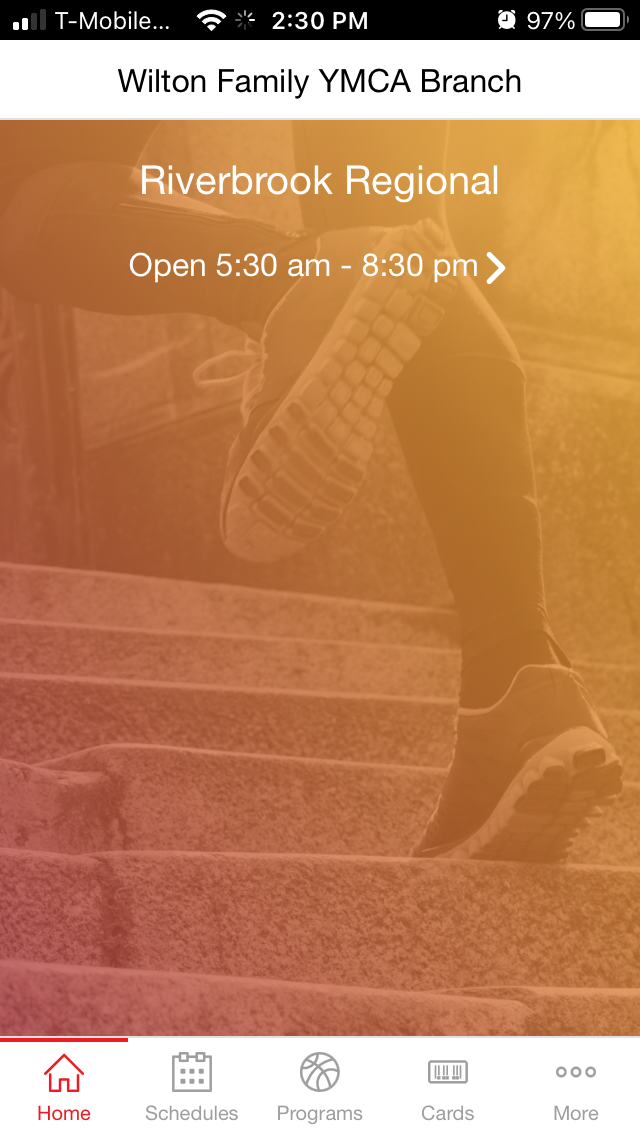
After you successfully log in, the first page you’ll see is the home screen. Think of this page as the hub for all the most important information you’ll need to know.

Note: when you first access the app, your mobile device will prompt you about receiving push notifications. If you don’t accept the push notifications prompt, you will not receive important notifications. We encourage you to accept it.  If you do not do so when this prompt is displayed the first time, you can manage it through your device’s Notification settings later.

The home screen displays announcements, your upcoming registrations, banners, and challenges.

Mobile App Home

Checking in with Barcodes 

The barcode icon is found on the upper right side of the home page.       

We know you love the ability to use a mobile app to access your barcode. With this app, you can tap the Scan In button from the home page to view your barcode. You can also save the barcode to your  digital wallet.

In addition, you can quickly select another member from your membership to view their barcode. This will streamline the check-in process for the whole family!

From anywhere within the app, you will see a small circle photo or icon on the right-hand side of the app. Tapping on this will slide out the side panel, which includes some helpful tools.

Sync Apple & Android Health

You can connect your Apple and Android Health to the app, making it simpler to sync “Challenge” step counts to the app. Using your device, when prompted, simply tap “Sync” to do so. From there, toggle on the “Steps” data.

Schedules and Programs

The Schedule (icon located at the bottom of the home page) and then Classes tab serves as the all-in-one home for group exercise classes, pools, the gymnasium and other areas of the Y.

You can browse classes and areas across the schedule using filters.

From the Schedule page, click on Classes and use the “Filter” button to find:

Category: 50M Pool, 25Y Pool, Gymnasium, Group Fitness Classes, Aqua Aerobics Classes, Athletic Training Center, Pond and Splash Pad

Click on the category you want and then hit Apply Filter at the bottom. Once the category you chose is showing, click on Apply Filter, at the bottom, again.

HINT: Pool schedules are under “classes“, then use the filter.

Schedules

To view Program offerings, tap on the Programs tab. This will take you to the Y’s registration page. Because you are already logged into your account, registering for programs is a breeze!

Programs26

Fundraising

The Giving tab, at the bottom of the screen, enables you to view a summary of your giving history, make a donation, and read about your community impact.

Challenges (Challenges will start August 2026)

The Challenges tab is also located at the bottom of the screen. Join in on the fun!

When you tap into a challenge, you’ll see more details about the challenge and start and end dates. You can also choose to leave a challenge whenever you wish.

Giving July
Challenges26

Notifications

Stay informed about important and time-sensitive information with push notifications. If you allow for push notifications, you will see alerts and/or banners on your device.

Guest App Experience

Are you “trying the Y” or just curious about our schedules and what the Y offers?

When opening the app, non-members can choose the “I AM A GUEST” option if you do not have a member login.

Guests will have the ability to see association-wide banners and challenges, schedules for group exercise classes and program offerings. However, in order to register, you will be prompted to create an account.